
If you're still printing labels on A4 paper, trimming them with scissors, and covering the whole thing in tape, your packing bench is working against you. That setup might get a few parcels out the door, but it starts to break the moment orders bunch up, a barcode prints faintly, or a label curls on a satchel.
A proper shipping station fixes that fast. For Australian small businesses sending boxes and parcels around the country, the simplest upgrade is usually a thermal printer that handles A6 labels cleanly, connects without drama, and keeps the workflow moving from booking to pickup. The right unit doesn't just print labels. It removes fiddly steps that slow dispatch down and create mistakes you only notice after a customer asks where their parcel is.
Why Your Business Needs a Dedicated Shipping Label Printer
The usual pattern is easy to spot. A business starts with a normal office printer because it's already there. Orders are manageable. Then sales pick up, labels get printed between invoices and packing slips, someone cuts one crooked, tape goes over a barcode, and the bench turns into a mess of paper scraps, boxes, and half-packed orders.
That system feels cheap at first. It usually isn't.
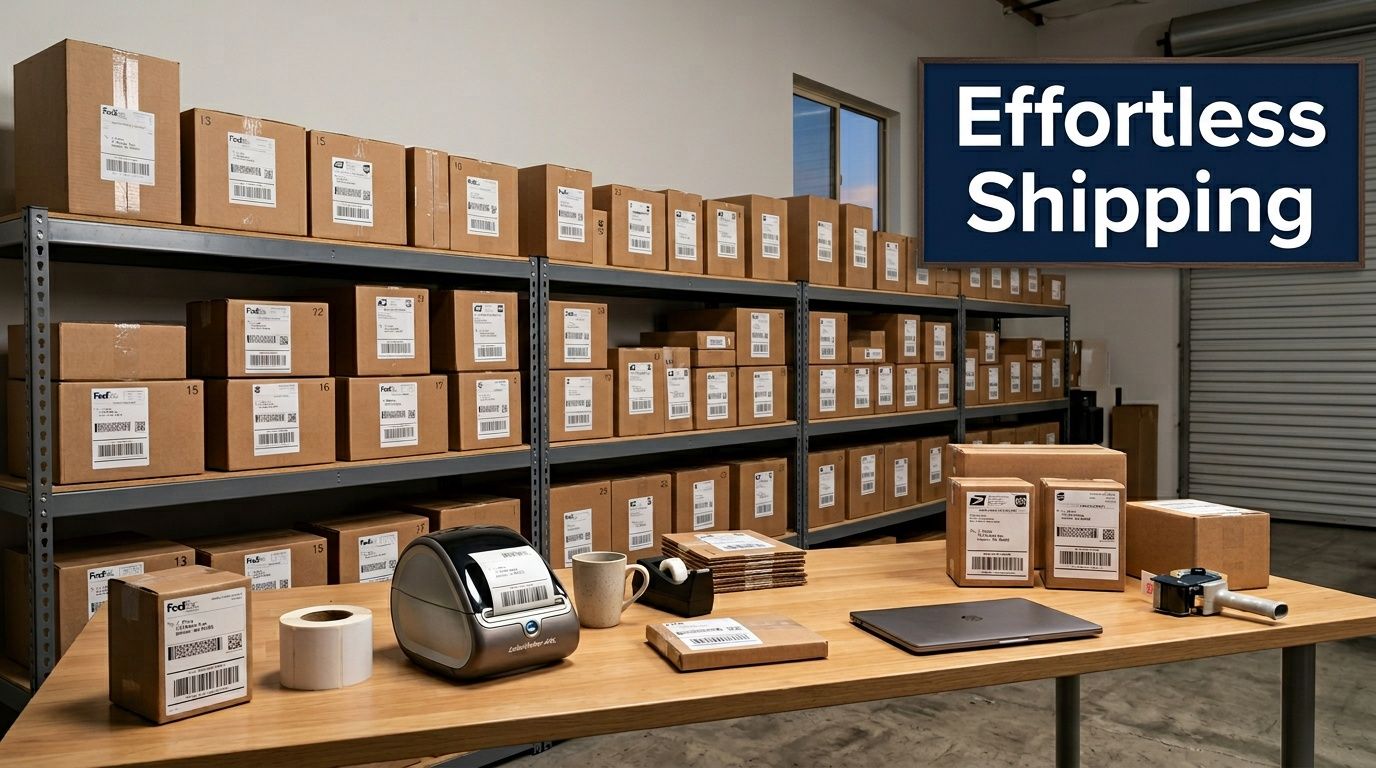
Manual labels create slow, expensive friction
A general printer adds steps you don't need:
- Print and trim: Every label needs cutting before it can be used.
- Tape and flatten: If the paper shifts, bubbles, or wrinkles, scanning suffers.
- Reprint and recheck: One bad feed or scaling issue can force a second run.
- Mix jobs together: Shipping labels compete with office documents, which clogs the bench.
The problem isn't just speed. It also affects presentation. A parcel with a neat, properly sized label looks organised before it ever reaches the driver.
In Australia, that matters more now because online retail keeps taking a larger share of sales. E-commerce accounted for 11.2% of total retail sales in Australia in 2023, up from 4.1% in 2015, which has pushed more small businesses to tighten up fulfilment and labelling workflows, according to this Australian shipping label printer market summary.
A thermal printer changes the bench
A dedicated thermal unit does one job well. You print an A6 label, peel it, stick it, and move on. No ink. No trimming. No wondering whether the print settings shrank the barcode.
For a growing business, that shift is bigger than it sounds. It gives you a repeatable packing routine your staff can follow without guesswork.
Practical rule: If you're shipping often enough that label printing feels annoying, you're already at the point where a dedicated printer makes sense.
A clean label station also helps when dispatch gets busy. Instead of stopping to solve tiny print issues all afternoon, you can keep orders flowing in one direction. Pack, label, stage, hand over.
It helps you scale without adding chaos
Most small operators don't need a warehouse overhaul. They need fewer touchpoints. A good shipping label printer removes several at once.
That means:
- Fewer handling errors because labels come out in the correct format
- Faster packing because there's no cutting and taping stage
- Cleaner presentation on cartons and satchels
- Less desk clutter because one compact printer replaces a messy workaround
This is one of those tools that earns its keep unobtrusively. You won't think about it much once it's set up properly. That's exactly the point.
Choosing the Right Shipping Label Printer for Australia Wide Delivery
A new store owner usually notices the printer problem on the first busy dispatch day. Orders are packed, pickup is booked, and the label printer becomes the slowest part of the bench. Labels print at the wrong size, barcodes look soft, or someone is trimming paper by hand. Across Australia, that gets old fast.
For Aeros Couriers users, the goal is simple. Pick a printer that works with A6 labels every time, connects without fuss, and stays out of the way once it is set up.
Start with direct thermal
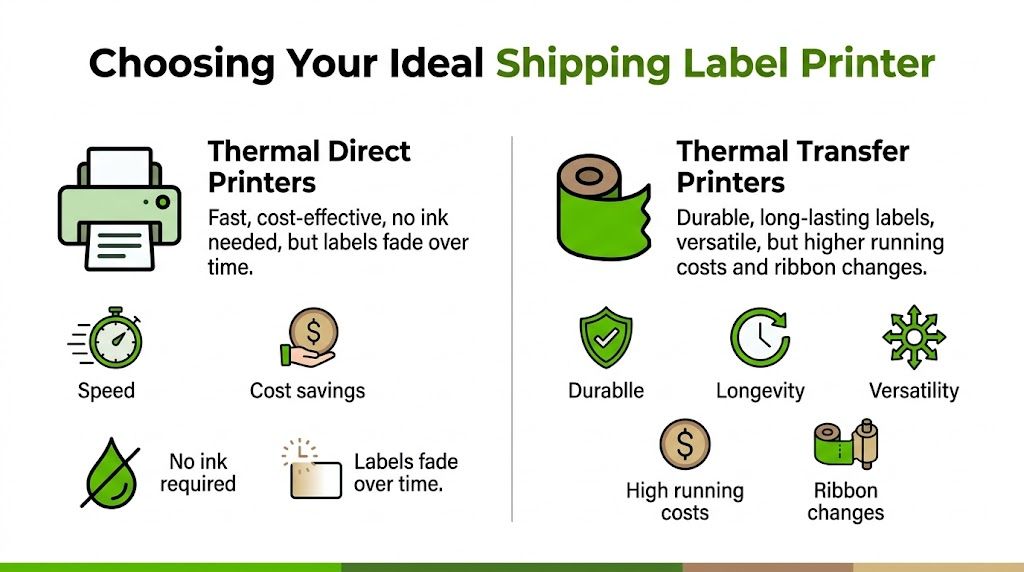
Direct thermal is the right fit for day-to-day shipping labels. It prints with heat onto thermal stock, so there is no ink, no toner, and no cartridge runs before a courier cutoff. That matters more in a dispatch area than in an office because every interruption slows packing.
There is one clear trade-off. Direct thermal labels are built for shipping and handling, not for long-term storage in harsh conditions. If you were labelling stock for years in a hot storeroom, thermal transfer would deserve a look. For cartons and satchels moving through normal courier networks, direct thermal is the practical choice.
The visual below captures the difference.
Buy for label format first
A lot of small businesses get distracted by feature lists. Shipping printers are simpler than that. If it handles A6 cleanly and feeds labels straight, you are most of the way there.
A6 matters because it matches the standard 4×6 format used for parcel labels. That keeps barcodes readable and avoids scaling issues that cause scan failures at depots or pickup. Office printers can sometimes be forced into the job, but they usually add extra steps you will end up paying for in labour and wasted labels.
Check these points before buying:
- A6 label support: Required for routine parcel work.
- USB or Bluetooth: USB is stable at a fixed bench. Bluetooth helps if you print from a laptop, tablet, or changing station.
- Consistent feed: Crooked labels and skipped gaps waste stock fast.
- Direct thermal printing: Lower running hassle than ink or toner devices.
- Small footprint: Bench space disappears once cartons, satchels, and pick slips pile up.
A long spec sheet does not help if the printer drifts off-centre during the afternoon rush.
The model I would put on an Australian SMB bench
For Aeros Couriers customers, the safest starting recommendation is the Munbyn thermal printer. It handles A6 labels properly, gives you Bluetooth for flexible bench setups, and avoids the ongoing cost and fuss of ink. What's more, it is one of the few budget-friendly units that tends to work without a long troubleshooting session.
That is a key advantage. New businesses do not need another device that turns setup into a project. They need a printer that works with the platform, works with common label stock, and lets staff print labels with minimal training. If you want the shortest path from account setup to live dispatch, Munbyn is the pick I would start with.
If you want to see the label side of the process before buying hardware, this guide on how to print shipping labels in Aeros Couriers shows the format your printer needs to handle.
Printer Spec Showdown for Aeros Couriers
| Feature | Munbyn Thermal Printer (Recommended) | Standard Inkjet/Laser Printer |
|---|---|---|
| Print method | Direct thermal | Ink or toner based |
| Label size fit | A6 shipping labels | Often needs manual setup or scaling |
| Running supplies | Thermal labels only | Paper plus ink or toner |
| Setup for shipping jobs | Simple and purpose-built | Workaround-based |
| Barcode output | Sharp on A6 sticker labels | Can vary with settings and paper |
| Connectivity | Bluetooth and common wired options | Usually wired or office-network focused |
| Bench space | Compact | Bulkier in most setups |
| Best use | Daily parcel labels | General office documents |
What works in practice
After enough dispatch benches, the pattern is pretty consistent.
What works well:
- Dedicated thermal printers for repeat parcel shipping
- A6 adhesive labels that apply cleanly and scan clearly
- Simple connection options your team can use without extra steps
- Reliable feed mechanisms that do not waste labels during busy runs
What usually causes trouble:
- Office printers used as a shipping workaround
- Mixed media setups where staff keep swapping paper trays and settings
- Low-grade labels with poor coating or inconsistent spacing
- Feature-heavy machines that solve problems a small dispatch bench does not have
A 2023 industry write-up noted that some Australian SMBs run into label compatibility issues when they use multi-carrier tools. The practical fix is not chasing more printer features. It is choosing a unit with proven A6 support and a straightforward setup.
For cheap, fast Australia-wide delivery, keep this decision boring. A reliable A6 thermal printer will save more time than a clever all-in-one ever will.
From Box to First Label Your Printer Setup Guide
The first setup usually decides whether a printer becomes useful or annoying. Most feed problems start before the first label is printed. They come from rushed loading, the wrong label orientation, or skipped driver settings.
A calm ten-minute setup beats an hour of troubleshooting later.
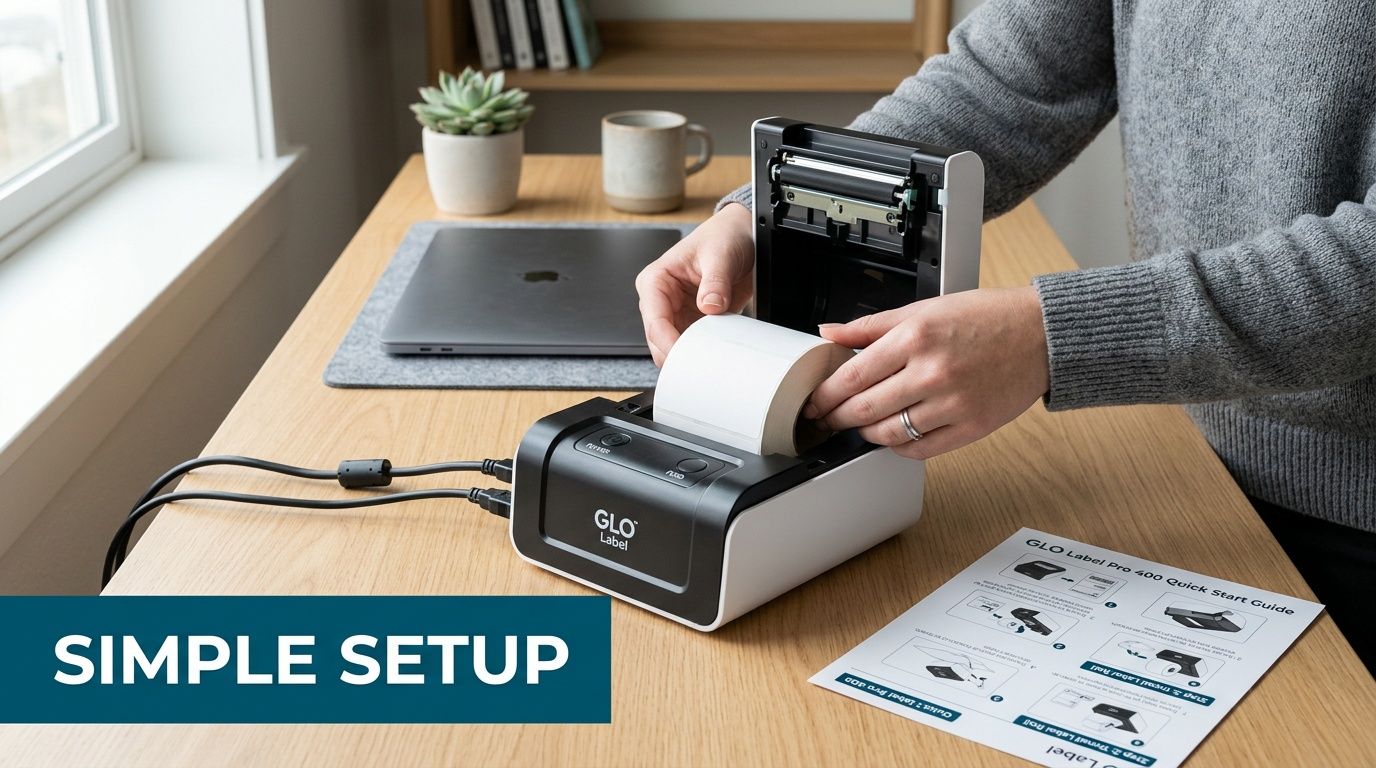
Unbox it like you're setting up a work tool
Take everything out and keep only what you'll use on the bench. That normally means the printer, power cable, connection cable if you're using one, and your stack or roll of A6 thermal labels.
Before you plug it in, check where it will live. Leave enough room behind and in front so labels can travel straight without curling into a wall, monitor stand, or pile of satchels.
A good bench position has three things:
- Flat surface: Wobble causes more issues than people expect.
- Dry, clean area: Dust and scraps collect around label paths quickly.
- Easy reach from packing zone: You shouldn't need to cross the room for every print.
Load the labels carefully
Most initial frustration stems from this. If the labels aren't centred or the guides sit too loose, the printer can drift off line and waste stock.
Use this sequence:
- Open the printer and place the label stack or roll correctly.
- Set the guides snugly against the label edges. Don't clamp hard. Just remove side play.
- Feed the leading edge straight. If it enters crooked, the rest usually follows.
- Close the lid firmly.
- Run a test feed before printing a live shipment label.
If you're using Munbyn, this part is usually painless. A6 sticker labels feed cleanly when the guides are adjusted properly, and that's been the most reliable stock choice for sharp barcode output in this workflow.
If a printer misfeeds on day one, don't assume the printer is faulty. Check the label guides first, then the label orientation, then the paper size setting on the computer.
Install the drivers and lock in the paper size
On Windows or macOS, install the printer driver recommended for your model. Once the printer appears in your device list, go straight to paper size and print preferences. This is the step people skip, then they wonder why labels shrink, clip, or print off-centre.
Set the paper size to A6 or 4×6, depending on how the driver labels it. Then confirm the orientation matches how your shipping software outputs labels.
Your first software check should include:
- Paper size: A6 / 4×6
- Scaling: Actual size, not fit-to-page
- Orientation: Portrait or horizontal as required by the label file
- Default device: Set the label printer as the default for shipping jobs only if that suits your workstation setup
If you need a simple walkthrough on generating labels before testing the printer, use the Aeros guide to print shipping labels and compare your output against a real booking label.
Connect by USB or Bluetooth
USB is usually the fastest path if the printer stays in one spot. Bluetooth is better if you want a cleaner bench, use a laptop, or print from more than one device.
Bluetooth setup tends to go smoothly if you pair the device first in your system settings and only then select it inside the print menu or shipping software. If you do it the other way around, the printer can appear available but fail to print.
A practical way to test the connection is to print three labels in a row:
- one sample label from the driver utility
- one real shipping label PDF
- one label directly from your booking flow
That sequence tells you whether the issue is hardware, system setup, or software formatting.
Print your first live label
Use a low-risk shipment first. Check the barcode, delivery address, sender details, and any service markings. Then stick it onto a plain box and make sure the label lies flat with no bubbling or edge lift.
You're looking for a label that prints dark, feeds straight, and peels easily. Once you've got that, don't keep changing settings. Save the configuration and leave it alone.
Most printer problems come from constant tinkering after the correct setup is already in place.
Syncing Your Printer with Aeros Couriers and Your Online Store
You pack six orders before lunch, book the jobs, hit print, and then lose ten minutes because one label opens in a browser, another downloads as a PDF, and a third goes to the office A4 printer. That is the point where a decent dispatch bench turns into a stop-start mess.
The fix is to make label printing part of one system, not a separate task staff have to remember.
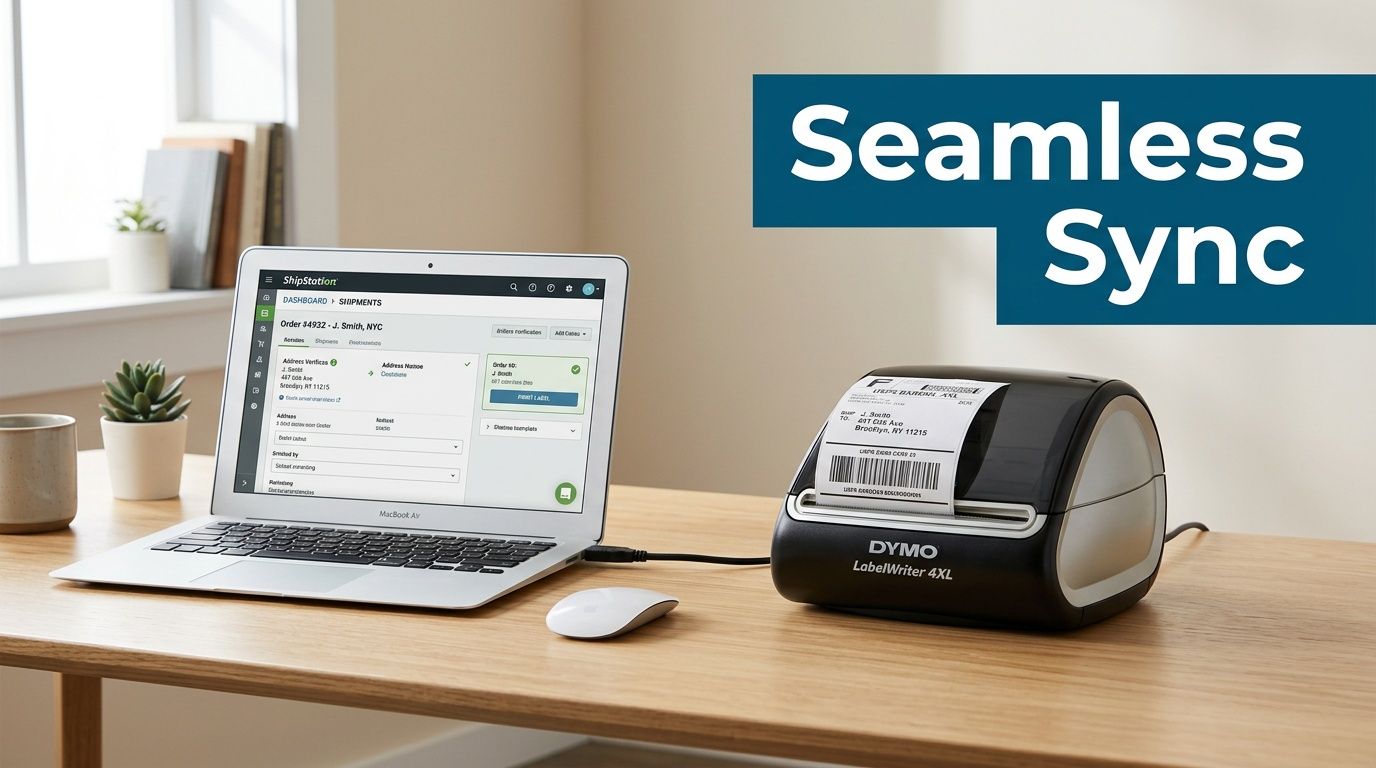
Set one path from order to label
A good setup is boring in the best way. The order comes in from your store, shipment details carry into booking, and the A6 label prints to the same thermal printer every time.
For Australian SMBs using Aeros Couriers, that usually means fewer tabs open, fewer manual downloads, and fewer chances for someone to print the wrong format in the middle of a pickup window. If you want booking data to pass straight from your store or internal system into dispatch, Aeros Couriers shipment API access helps keep the booking record and label tied together.
That matters more than the printer brand on its own. I have seen businesses buy decent hardware and still waste time because the label workflow depends on browser print prompts and staff memory.
Use fixed defaults and leave them alone
Set the thermal printer as the default device for shipping labels. Keep the label size locked to A6. Run one live booking through the full flow and confirm the barcode, sender details, and service markings print cleanly.
After that, stop tinkering.
If your business is starting from scratch on Aeros, a Munbyn thermal printer is a practical choice because it is easy to set up for standard label runs and avoids the trial-and-error that slows down first-time dispatch teams. The primary benefit is not the logo on the unit. It is having one printer, one label size, and one repeatable process from day one.
A simple check before going live:
- Set the shipping printer as the default label device
- Confirm A6 output in the courier workflow
- Print from an actual booking, not a sample file
- Scan the barcode with a phone or handheld scanner
- Test wake-up speed after the printer has been idle
Connect the store properly
The platform changes. The logic does not.
Shopify, WooCommerce, and similar stores should pass customer and address details into your shipping workflow without anyone retyping them. Staff should only confirm service choices, final weights, and any shipment notes that were not captured at checkout. Once booked, the label should print straight away.
That single flow does two useful things. It cuts copy-paste errors, and it makes batch dispatch much easier when twenty similar orders need to move before the driver arrives.
Teams trying to tighten this part of dispatch often get value from mastering order management for ecommerce, especially once daily order volume starts jumping between quiet and busy days.
Problems that look like printer faults
Plenty of failed prints have nothing to do with the printer. They come from software conflicts and loose process control.
The usual trouble spots are:
- PDF viewers resizing labels before print
- Browser print settings overriding saved defaults
- Store fields splitting suburb, state, or postcode inconsistently
- Shared dispatch stations sending labels to different printers
- Bluetooth units being re-paired across multiple devices
That last one catches growing teams. If you use a Bluetooth Munbyn on the packing bench, pair it with the main dispatch machine and keep it there. Constant switching between laptops and tablets causes confusion that looks like a hardware issue but is really a workflow issue.
A synced setup should feel simple. Book the job, print the label, stick it on, and move the parcel to pickup. If staff still need to ask which print option to choose, the system is not fully set yet.
Your Daily Workflow for Fast and Cheap Shipping
Once the printer is dialled in, the daily routine matters more than the hardware. Cheap shipping doesn't come from rushing. It comes from an organised bench, clean order flow, and labels that get printed and applied in the right order.
The easiest dispatch days usually look almost repetitive. That's a good sign.
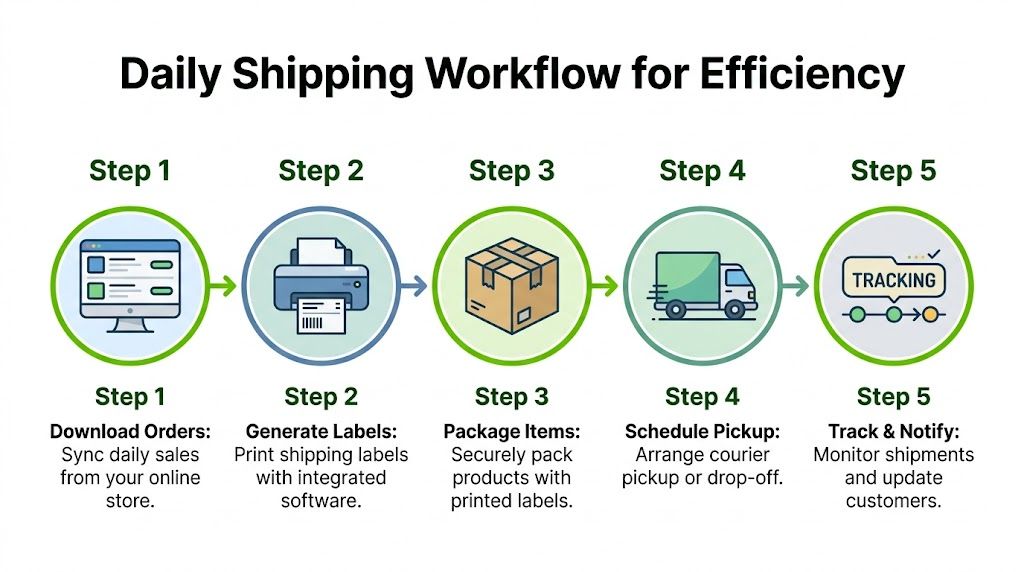
A simple rhythm that keeps parcels moving
A practical small-business routine often starts with orders being reviewed in one batch rather than one by one. That lets you sort similar shipments together, pack efficiently, and print labels in a clean run instead of stopping after every single order.
A strong day usually follows this pattern:
- Pull orders first: Review the day's parcels before touching the printer.
- Pack before the rush builds: Group similar box sizes and satchels together.
- Print labels in batches: Keep the printer running in one session rather than scattered bursts.
- Apply labels immediately: Don't leave loose labels sitting on the bench.
- Stage completed parcels by pickup readiness: Make handover easier for the driver.
If your business is growing, it's worth spending time on mastering order management for ecommerce. Not because it's trendy, but because poor order flow usually creates more shipping mistakes than the printer ever will.
Label placement is part of delivery success
The best A6 label in the world won't help if it's slapped across a box seam or wrapped over an edge. Placement affects scan quality, handling, and whether the parcel still looks readable after moving through depots and vans.
Use a flat face of the carton or satchel whenever possible. Keep the barcode clear, unwrinkled, and away from heavy tape overlap. If the parcel surface is dusty or textured, press the label down firmly across the full adhesive area.
A few habits make a real difference:
- Use the largest flat panel available
- Keep labels off corners and folds
- Don't cover the barcode with extra tape unless absolutely necessary
- Remove or block old labels on reused cartons
A fast bench isn't one where people move frantically. It's one where every parcel follows the same path with no backtracking.
Organise for pickup, not just packing
The handover stage gets ignored by new shippers, but that's where a tidy dispatch bench saves time. Once labelled, place parcels in a clear pickup zone with addresses and service details facing outward where practical.
That helps your team do a final visual check before the driver arrives. It also prevents the classic problem of one finished parcel being left under the bench or mixed with unpacked stock.
For businesses trying to trim waste from dispatch time and packaging flow, the advice in this guide on reducing shipping costs for small business is useful because cost control usually comes from workflow discipline more than one-off savings.
A day in the life of an efficient bench
A well-run morning dispatch doesn't look dramatic. Orders are already sorted. Boxes are packed in size groups. The thermal printer runs through a label batch. Each label goes straight onto the correct parcel, then the parcel moves to the pickup area.
No one is searching through a pile of printed sheets. No one is asking which package belongs to which customer. No one is reprinting labels because the wrong printer handled the file.
That's the payoff. The shipping process stops feeling like a scramble and starts feeling like a routine your business can rely on.
Printer Maintenance and Australian Shipping Compliance
A printer usually starts costing money before it stops working. The first signs are easy to miss. Barcodes print a little light, the label drifts a few millimetres, or adhesive dust builds up and feeds start slipping. In a busy dispatch area, that turns into rescans, relabels, and parcels held back for manual checks.
For Australian SMBs shipping through Aeros Couriers, this is one of the easiest places to stay ahead. A decent thermal unit such as the Munbyn keeps maintenance fairly simple, but simple still needs to happen regularly if you want clean scans across different carrier networks.
Keep maintenance routine and quick
The goal is a printer that stays boring. No surprises, no mid-batch feed issues, no guessing whether a barcode will scan at pickup.
A short maintenance habit usually covers the jobs that matter:
- Clean the printhead when text or barcodes start looking faint
- Check rollers and the label path for dust or adhesive buildup
- Store label stock in a dry, stable spot so the material does not curl or lose adhesion
- Run a test print after changing label rolls or printer settings
If a label looks average on the bench, it usually looks worse after handling, sorting, and transport. Reprint it straight away.
Compliance starts with readable labels and sensible placement
For parcel freight, compliance is often less about legal jargon and more about doing the basics properly every time. Carriers need labels that stay attached, stay legible, and scan cleanly through depots, linehaul, and final delivery.
That means using label stock that suits thermal printing, applying it to a clean flat surface, and avoiding placement that causes folds, tears, or barcode distortion. If your team needs a quick reference, this guide on where to place a label on a package is practical for everyday packing bench checks.
The common slip-ups are usually straightforward:
- Cheap labels that lift in cold, heat, or rough handling
- Labels applied over seams or corners where barcodes crease
- Faint prints sent out without a scan test
- Dusty or damp cartons that stop labels sticking properly
Treat compliance as part of workflow discipline
Small operators do not need to overcomplicate this. They need a repeatable process. Clean printer. Good label stock. Clear placement. Quick visual check before the parcel moves to pickup.
That is also why workflow optimization matters in dispatch. A reliable process catches label problems early, before they turn into failed scans, delivery delays, or customer service follow-up.
Good compliance usually looks like good bench habits. Keep the printer clean, keep the labels readable, and fix small print issues the same day they show up.
Unlock Your Business Growth with Smarter Shipping
A dedicated label printer won't grow the business on its own. What it does is remove friction from one of the most repetitive jobs in the operation. That matters because every avoided reprint, every clean barcode, and every smooth pickup gives time back to sales, service, and fulfilment.
If you want a broader view of how small process fixes create bigger operational gains, this explanation of workflow optimization is worth reading. Then put the idea into practice with your shipping setup, starting with a clean label process and a simple quoting workflow through the shipping price calculator.
If you want a simpler way to book, label, and send parcels across Australia without account application hassles, Aeros Couriers gives you a straightforward online workflow for instant quotes, label printing, and low-cost delivery options for boxes and parcels.
Courier quotes, tracking and support
Ready to send a parcel? Compare the available services for your postcodes, parcel dimensions and weight. For an existing delivery, use your consignment number to check tracking or ask our team for help.